
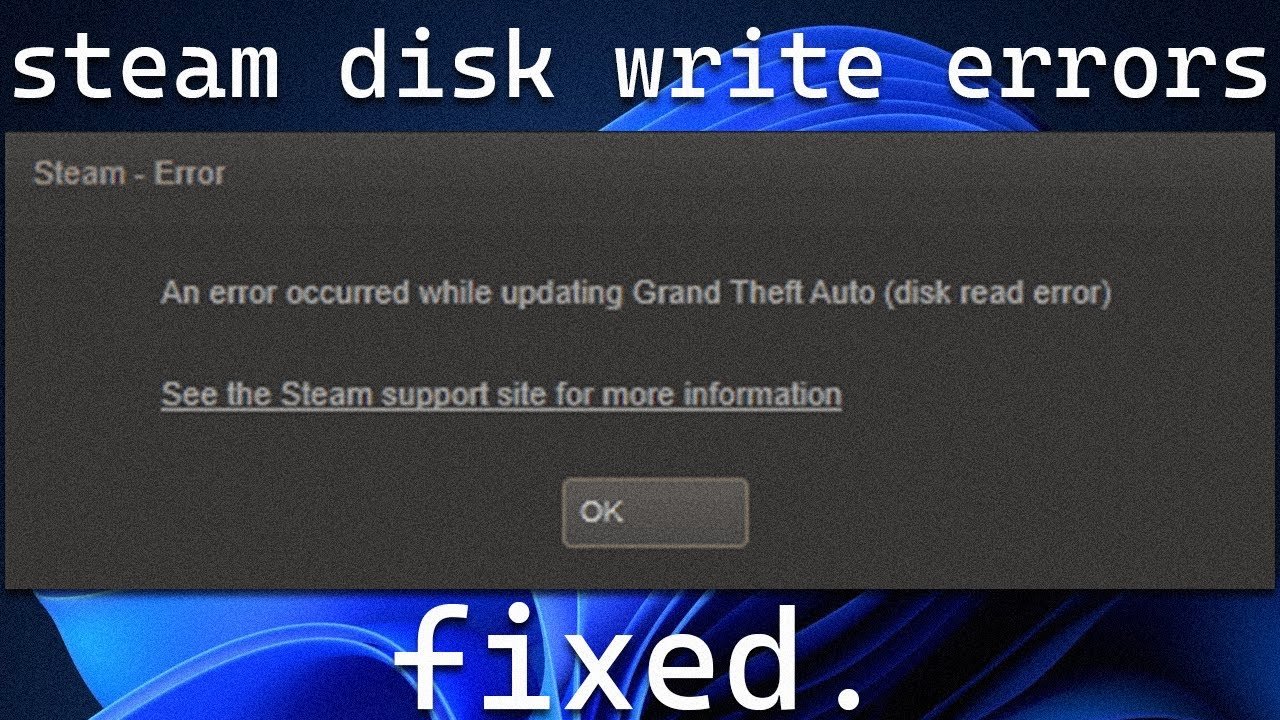
The thrill of a new game download on Steam can quickly turn sour when you encounter the dreaded “Steam Disk Write Error.” This error message signifies that Steam is unable to write data to your storage drive, halting downloads, updates, and even game launches. But fear not, fellow gamer! This guide equips you with the knowledge and solutions to vanquish this error and get you back to enjoying your Steam library.
Understanding the Steam Disk Write Error: Why it Happens

At its core, the Steam Disk Write Error boils down to a permission or access issue. Steam needs to write files to your storage drive during downloads, updates, and game launches. However, several factors can prevent this:
Insufficient Drive Space: A full storage drive leaves no room for new data, triggering the error.
Drive Permissions: The drive or Steam folder might lack the necessary write permissions, hindering Steam’s ability to modify files.
Antivirus/Firewall Interference: Overzealous security software might mistakenly flag Steam downloads as threats, blocking the writing process.
Corrupted Files: Damaged Steam files or game files can cause write errors during verification or updates.
Hard Drive Issues: Physical damage or logical errors on your storage drive can lead to write failures.
Troubleshooting Tactics: Eradicating the Error
Basic Checks:
Restart Steam and Your PC: A simple restart can often resolve temporary glitches that might be causing the error.
Verify Steam Library Integrity: This function scans Steam files for corruption and repairs them if necessary. To do this, navigate to Steam > Library, right-click on a game, select “Properties” > “Local Files” > “Verify Integrity of Game Files…”
Addressing Storage Issues:

Free Up Drive Space: Delete unnecessary files, uninstall unused programs, or consider transferring games to a secondary drive with more space.
Check Drive Permissions: Right-click on the Steam folder or your storage drive, go to “Properties” > “Security” tab. Ensure your user account has “Full Control” permissions.
Security Software Management:
Temporarily Disable Antivirus/Firewall: This is a temporary troubleshooting step. If disabling these programs resolves the error, add Steam as an exception to prevent future conflicts. Be cautious when disabling security software and re-enable it after troubleshooting.
Advanced Solutions:
Clear the Download Cache: A corrupted download cache can cause write errors. In Steam, go to “Steam” > “Settings” > “Downloads” > “Clear Download Cache.”
Run Steam as Administrator: Right-click the Steam shortcut and select “Run as administrator.” This grants Steam elevated privileges, potentially bypassing permission issues.
Reinstall Steam: If all else fails, consider reinstalling Steam. This will erase corrupted files and ensure a clean installation. Note that you won’t lose your game library; only the Steam client files are affected.
For Tech-Savvy Users:
Check Disk Errors: Use the built-in “chkdsk” command prompt tool to scan and repair potential disk errors.
Defragmentation (HDDs only): For traditional hard disk drives (HDDs), defragmenting can improve write performance. Solid-state drives (SSDs) don’t require defragmentation.
When Hardware Might be the Culprit:
If none of the software solutions work, the problem might lie with your storage drive. Consider:
Running a disk health check: Tools provided by your storage drive manufacturer or built-in system utilities can diagnose potential hardware issues.
Replacing the Storage Drive: In severe cases, a failing drive might necessitate replacement.
Beyond the Basics: Community Tips and Insights
The Steam Community forums are a treasure trove of user-reported solutions and workarounds. Here are some insights gleaned from the community:
Try a Different Download Server: Steam offers multiple download servers. Switching servers might resolve connectivity or server-side issues.
Exclude Steam Folder from Antivirus/Firewall Scans: Adding the Steam installation folder as an exception to your security software can prevent future conflicts.
Repair Corrupted Game Files: If the error occurs with a specific game, try verifying the game files’ integrity, as mentioned earlier. In some cases, completely reinstalling the game might be necessary.
Conclusion: Banishing the Disk Write Error for Good
The Steam Disk Write Error, while frustrating, is often solvable with a combination of the methods outlined above. By systematically working through the potential causes, you can identify the culprit and get back to enjoying your Steam library. Remember, if the issue persists after exhausting software solutions, hardware issues might be at play. In such cases, consider seeking professional help or consulting your
FAQs
Steam Disk Write Error FAQs
Ever tried downloading a game on Steam only to be met with the dreaded “Disk Write Error”? Don’t worry, you’re not alone. This FAQ will guide you through the causes and solutions for this common Steam issue.
Q: What causes a Steam Disk Write Error?
There are several reasons you might encounter this error:
Insufficient Disk Space: Steam needs enough space on your drive to download and install games. A full drive can prevent writes.
Permissions Issues: Steam might lack the necessary permissions to write files to your chosen download location.
Corrupted Files: Damaged Steam files or corrupted game data can cause write errors.
Antivirus or Firewall Interference: Security software might be blocking Steam’s access to the disk.
Hard Drive Issues: Physical problems with your hard drive could prevent Steam from writing data.
Q: How can I fix the Steam Disk Write Error?
Here are some solutions to try, starting with the easiest:
Restart Steam and your computer: A simple restart can often resolve temporary glitches.
Free up disk space: Make sure you have enough space on the drive where Steam is downloading the game.
Run Steam as administrator: This gives Steam elevated permissions, potentially fixing permission issues.
Verify Integrity of Game Files: This checks for corrupted game files and attempts to fix them (Steam > Library > right-click game > Properties > Local Files > Verify Integrity of Game Files).
Clear Steam Download Cache: A corrupted cache can cause issues. Go to Steam > Settings > Downloads > Clear Download Cache.
Change Download Location: Try downloading the game to a different drive on your system.
Check Disk for Errors: Use the built-in disk error checking tool on your operating system to scan for and fix potential drive issues.
Temporarily Disable Antivirus/Firewall: Security software might be interfering. Try disabling them temporarily (remember to re-enable them afterwards!).
Reinstall Steam: If all else fails, consider reinstalling Steam as a last resort.
Q: Should I be worried about a Steam Disk Write Error?
The error itself isn’t necessarily a sign of major problems. However, it can be frustrating and prevent you from playing games. Fixing the error usually involves simple troubleshooting steps.
Q: What if none of these solutions work?
If you’ve tried everything above and are still encountering the error, it’s recommended to contact Steam Support for further assistance. They can help diagnose the issue and provide more specific solutions.
Bonus Tip: Searching online forums like the Steam Community Discussions (https://steamcommunity.com/) can be a valuable resource. You might find solutions that worked for others with similar problems.
To Read More; click here