
Frustrated by Content Warning Mic Not Working? You’re not alone. In a horror game that relies heavily on communication and teamwork, a non-functional microphone can be a real buzzkill. But fear not, fellow survivors! This guide will delve into the common causes of microphone issues in Content Warning and equip you with solutions to get your voice chat back on track.
Why Can’t My Mic Work in Content Warning?

Several factors can contribute to a non-functioning microphone in Content Warning. Here are the most common culprits:
Incorrect Microphone Selection: Your computer might have multiple audio input devices (e.g., headset mic, webcam mic). Content Warning might not be picking up the one you want.
Voice Chat Mode Issues: Content Warning offers two voice chat modes: Voice Detection and Push to Talk. A wrongly selected mode can leave you seemingly muted.
Low Microphone Volume: Your microphone volume might be set too low, making it difficult for others to hear you.
Outdated Audio Drivers: Outdated or corrupted audio drivers can lead to various audio issues, including microphone problems.
In-Game Bugs: Like any software, Content Warning can have occasional bugs that might affect microphone functionality.
Hardware Problems: In rare cases, the issue might lie with your microphone itself.
How to Fix Your Content Warning Microphone Woes
Now that we’ve identified the potential culprits, let’s explore solutions to get your voice booming in Content Warning:
1. Check Your Microphone Selection:
Head into Content Warning’s Settings menu.
Navigate to the Audio tab.
Under the Microphone section, ensure the correct microphone is selected (usually your headset mic).
2. Verify Your Voice Chat Mode:
Still in the Audio settings, find the “Voice Chat Mode” option.
Choose between “Voice Detection” (automatically transmits voice) or “Push to Talk” (requires a key press to transmit).
If using Push to Talk, confirm you’re pressing the designated key to activate your microphone.
3. Adjust Microphone Volume:
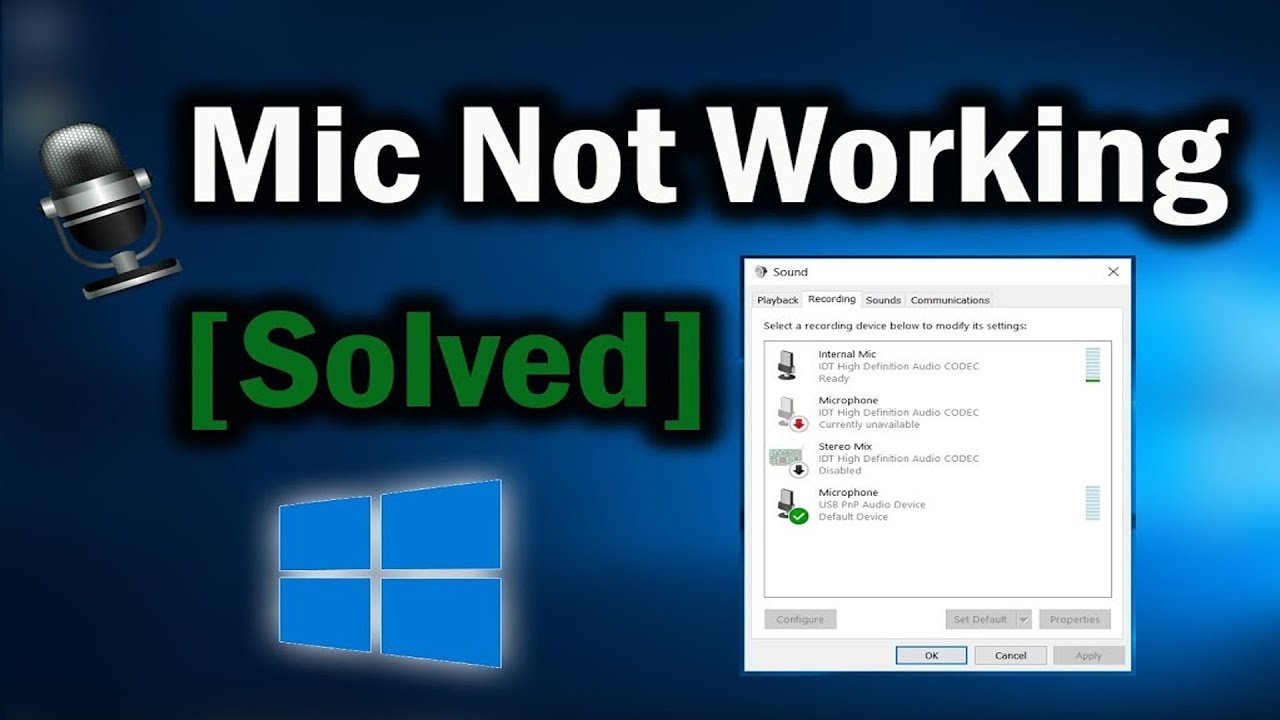
Go to your system’s sound settings (Windows Settings > Sound or System Preferences > Sound on Mac).
Locate your microphone and adjust its input volume to an appropriate level.
You can also test your microphone here to ensure it’s picking up sound.
4. Update Your Audio Drivers:
Outdated drivers can cause various audio problems.
Visit your device manufacturer’s website and download the latest audio drivers for your system.
5. Verify Game File Integrity:
Corrupted game files can sometimes lead to unexpected issues.
Thankfully, Steam offers a handy feature to verify the integrity of your game files.
6. Restart the Game and/or Your PC:
A simple restart can often resolve temporary glitches and software conflicts.
Close Content Warning and other running applications, then restart your computer.
7. Check for In-Game Updates:
Developers often release patches to fix bugs reported by the community.
Ensure you’re running the latest version of Content Warning to benefit from any microphone-related fixes.
Check for updates through the game launcher or your platform’s store.
8. Consider Alternative Communication Methods:
While resolving the microphone issue, you can still communicate with teammates using alternative methods.
If you’re playing with friends, consider using a third-party voice chat application like Discord.
Content Warning might also offer in-game text chat functionalities.
9. Troubleshoot Hardware Issues:
If none of the above solutions work, the problem might lie with your microphone hardware.
Try connecting a different microphone to your computer and see if Content Warning picks it up.
Consult your microphone’s user manual for troubleshooting tips specific to your model.
10. Report the Issue (If Necessary):
If you’ve exhausted all available solutions and the issue persists, consider reporting it to the developers.
Search for Content Warning’s official bug reporting channels (forums, social media) and provide a detailed description of the problem.
Bonus Tip: Check Online Resources:
The internet can be a valuable resource for troubleshooting microphone issues.
Search for “Content Warning microphone not working” on forums, communities, or YouTube.
You might find solutions from other players who have encountered similar problems.
FAQs
Q: My mic isn’t working in Content Warning. What are some common causes?
A: There are a few reasons why your mic might be silent:
Wrong Microphone Selected: Check your in-game audio settings. Make sure Content Warning is using the correct microphone. You might have multiple mics (headset, webcam) and the game might be grabbing the wrong one.
Mic Permissions: Windows or your antivirus might be blocking Content Warning from accessing your mic. Grant microphone permissions for the game in your system settings.
Voice Chat Mode: Content Warning offers Push-to-Talk and Voice Activated chat. Ensure you’re using the correct mode and hitting the Push-to-Talk key if necessary.
Outdated Audio Drivers: Outdated drivers can cause compatibility issues. Head to your sound card manufacturer’s website and download the latest audio drivers for your system.
Corrupted Game Files: Sometimes, corrupted game files can lead to glitches. Steam offers a handy tool to verify the integrity of your Content Warning files. Right-click on Content Warning in your Steam library, select Properties, then Local Files, and choose “Verify Integrity of Game Files.”
Q: I’ve checked the settings and everything seems right. My mic still isn’t working!
A: If the basic checks don’t solve the problem, here are some further steps:
Test Your Microphone: Most operating systems have a built-in sound recorder. Use it to test your microphone and make sure it’s working independently of Content Warning.
Check for Conflicting Applications: Does any other software (Discord, VOIP clients) have exclusive access to your microphone? Close any conflicting applications before launching Content Warning.
Restart Your System: A simple restart can sometimes clear up temporary glitches.
Reinstall Content Warning: As a last resort, try reinstalling Content Warning.
Q: Are there any known bugs with Content Warning’s voice chat?
A: There have been reports of occasional bugs with proximity voice chat in Content Warning. These can sometimes be fixed by the above troubleshooting steps. However, if none of these solutions work, it might be a bug with the game itself. Consider checking the Content Warning Steam forums or communities to see if other players are experiencing similar issues. You can also report the bug to the developers.
Q: My mic is working, but other players can’t hear me clearly. What can I do?
A: There are a few reasons why your voice might be muffled or distorted:
Microphone Volume: Make sure your microphone volume is turned up in both your system settings and the in-game audio options.
Background Noise: Content Warning uses proximity chat, so background noise can be a problem. Try using a headset with a noise-cancelling microphone or find a quieter environment to play.
Distance in-game: If you’re using proximity chat, remember that players can only hear you from a certain distance. Get closer to your teammates for clear communication.
By following these steps, you should be able to diagnose and fix your microphone issues in Content Warning. Remember, if all else fails, the Steam forums and online communities are a great resource for finding solutions and workarounds.
To Read More; click here