
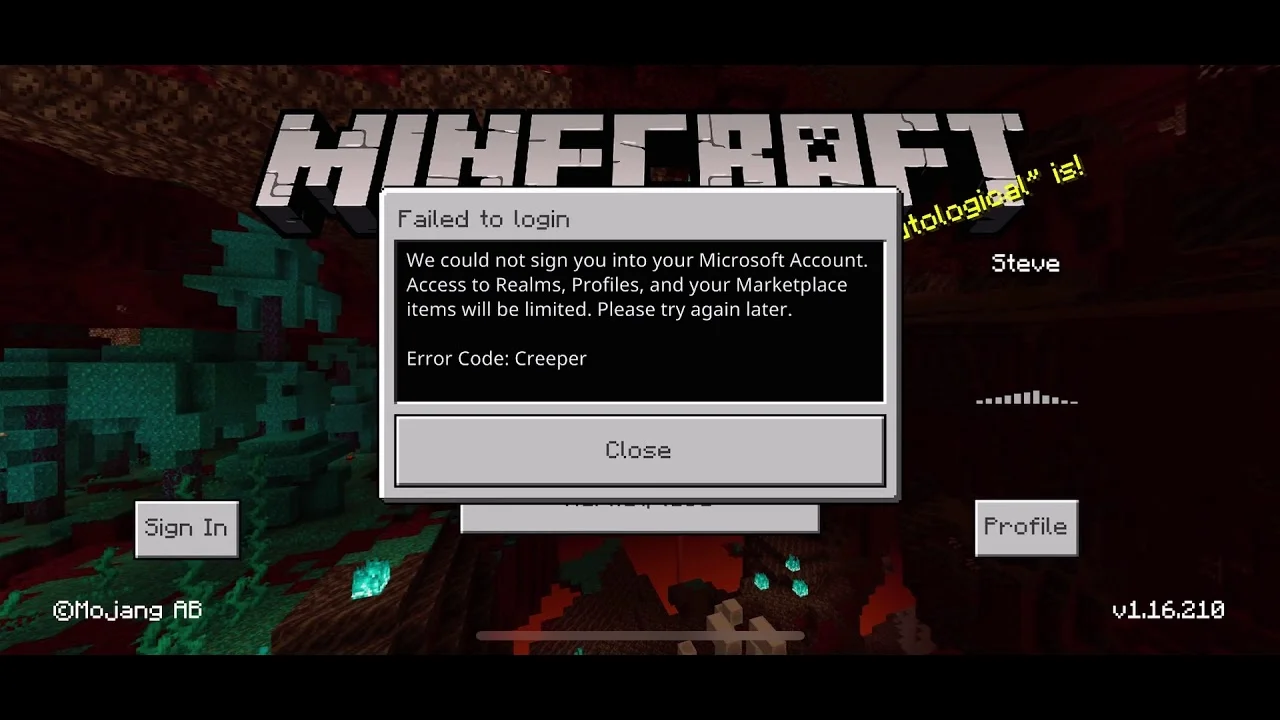
Getsockopt minecraft error- The enigmatic “getsockopt” error in Minecraft has perplexed countless players, interrupting their gaming adventures with an abrupt disconnection. This article delves into the depths of this error, exploring its causes, symptoms, and most importantly, effective solutions.
Understanding the Getsockopt Error
At its core, the getsockopt error signifies an underlying issue with the communication between your Minecraft client and the server. This communication breakdown, often stemming from network-related problems or software conflicts, prevents a stable connection.
Common Symptoms:
An abrupt disconnection from the Minecraft server.
The error message “getsockopt” appearing on the screen.
Inability to connect to multiplayer servers.
Lag or stuttering during gameplay, often preceding the error.
Root Causes of the Getsockopt Error
Pinpointing the exact culprit behind the getsockopt error can be challenging, as multiple factors can contribute to this issue. Here are some common culprits:
Network Connectivity Problems: A weak or unstable internet connection can disrupt the communication between your device and the Minecraft server, leading to the getsockopt error.
Firewall Interference: Overly restrictive firewall settings can block Minecraft’s outgoing connections, preventing access to servers.
Outdated or Corrupted Game Files: Corrupted or incompatible game files can compromise the game’s functionality, resulting in connection issues.
Server-Side Problems: Occasionally, the getsockopt error might originate from the server itself, due to technical difficulties or overloading.
Java Issues: As Minecraft is a Java-based game, problems with the Java environment can contribute to connection errors.
Mod Conflicts: If you use mods, compatibility issues or conflicts between mods can interfere with the game’s network functions.
Troubleshooting the Getsockopt Error
While the getsockopt error can be frustrating, several troubleshooting steps can help you resolve the issue:
Check Network Connectivity
Ensure you have a stable internet connection with adequate download and upload speeds.
Try connecting to other online services to verify network functionality.
Temporarily disable any VPN or proxy services that might interfere with your connection.
Configure Firewall and Antivirus Settings
Add Minecraft to the exceptions list of your firewall.
Temporarily disable your antivirus software to rule out any conflicts.
Verify Game Files Integrity
Launch the Minecraft launcher.
Navigate to the “Installations” tab.
Select the desired Minecraft version and click on “Verify.”
Allow the game to scan and repair any corrupted files.
Update Minecraft and Java
Keep your Minecraft game and Java runtime environment up-to-date with the latest versions.
Outdated software can introduce vulnerabilities and compatibility issues.
Adjust Server Settings (If Applicable)
If you’re hosting a Minecraft server, check server logs for any error messages.
Increase the maximum number of players or allocate more resources to the server.
Modify Java Settings
Allocate sufficient memory to the Java Virtual Machine (JVM) by editing the Minecraft launcher settings.
Experiment with different Java versions to identify compatibility issues.
Remove Conflicting Mods
If you use mods, try disabling them one by one to isolate the culprit.
Remove any mods that are known to cause compatibility issues.
Flush DNS Cache
Open a command prompt or terminal window.
Type “ipconfig /flushdns” and press Enter.
This clears the DNS cache, which can sometimes resolve connection problems.
Additional Tips
Consider restarting your router and modem to refresh your network connection.
Temporarily disable any background applications that might consume network resources.
Join the Minecraft community forums or support channels to seek assistance from other players.
By systematically working through these troubleshooting steps, you can increase your chances of resolving the getsockopt error and returning to your Minecraft adventures. Remember to be patient and persistent, as finding the solution might require experimentation with different approaches.
If you’ve exhausted all troubleshooting options and the getsockopt error persists, it’s advisable to contact Minecraft support for further assistance.
Disclaimer: While this article provides general guidance, specific solutions may vary depending on your operating system, Minecraft version, and other factors.
FAQs
What is the “getsockopt” Error?
Q: What does the “getsockopt” error mean?
A: The “getsockopt” error typically indicates a network-related issue, often stemming from problems with your internet connection, firewall settings, or Minecraft’s configuration. It might also be caused by server-side issues.
Q: Why does the “getsockopt” error occur?
A: There are several potential causes for the “getsockopt” error, including:
Network connectivity problems
Firewall restrictions
Outdated or corrupted Minecraft files
Server-side issues
Java-related problems
Troubleshooting the “getsockopt” Error
Q: How can I fix the “getsockopt” error?
A: While there’s no one-size-fits-all solution, here are some common troubleshooting steps:
Q: Check your internet connection:
A: Ensure you have a stable internet connection. Try restarting your router or modem to refresh the connection.
Q: Adjust firewall settings:
A: Add Minecraft to your firewall’s allowed applications list. You can usually find these settings in your operating system’s control panel.
Q: Verify Minecraft game files:
A: Check for corrupted or missing game files. Most game launchers have a built-in verification process.
Q: Update Java:
A: Ensure you’re using the latest version of Java. Outdated Java can cause compatibility issues.
Q: Check server status:
A: If you’re trying to connect to a server, verify that it’s online and accessible.
Additional Tips and Tricks
Q: Can mods cause the “getsockopt” error?
A: While rare, it’s possible that certain mods could interfere with network connections. Try disabling mods temporarily to see if the issue persists.
Q: What if none of these solutions work?
A: If you’ve tried the above steps and still encounter the error, consider:
Reinstalling Minecraft
Checking for driver updates (network adapter, etc.)
Contacting your internet service provider (ISP)
Seeking help from the Minecraft community or support forums
Preventing Future Issues
Q: How can I prevent the “getsockopt” error from happening again?
A: To minimize the chances of encountering the “getsockopt” error in the future, keep your internet connection stable, firewall settings up-to-date, and Minecraft game files verified. Regularly updating Java is also recommended.
Remember: If you’re connecting to a server, it’s essential to check the server’s status and ensure it’s not experiencing any issues.
By following these steps and considering the potential causes, you should be able to resolve the “getsockopt” error and enjoy your Minecraft experience. If the problem persists, don’t hesitate to seek further assistance from the Minecraft community or support resources.
Would you like to know more about specific troubleshooting steps for different operating systems or Minecraft versions?
To Read More; click here