
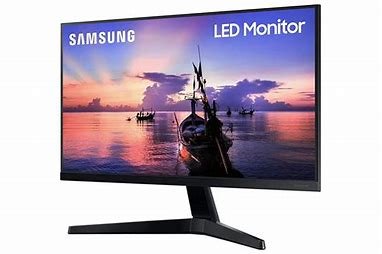
24-inch monitors have become a popular choice for both personal and professional use. Their size offers a balance between screen real estate and compactness, making them versatile for a variety of tasks. Let’s delve into the reasons why 24-inch monitors are such a hit.
Why Choose a 24-Inch Monitor?
Optimal Size:
24-inch monitors strike a perfect balance between being large enough for comfortable viewing and small enough to fit on most desks without overwhelming the space.
Versatility:
They are suitable for a wide range of applications, including office work, gaming, video editing, and casual browsing.
Cost-Effective:
Compared to larger monitors, 24-inch models generally offer better value for money, making them a practical choice for budget-conscious users.
Key Considerations When Buying a 24-Inch Monitor
Resolution:
Full HD (1920×1080) is a common resolution for 24-inch monitors, providing crisp and clear visuals. However, if you require even more detail, consider higher resolutions like Quad HD (2560×1440) or 4K (3840×2160).
Panel Type:
The type of panel used (e.g., IPS, VA, TN) affects factors like viewing angles, colour accuracy, and response time. IPS panels are generally preferred for their wide viewing angles and better colour reproduction.
Refresh Rate:
For gamers or those who frequently watch fast-paced content, a higher refresh rate (measured in Hz) can reduce motion blur and provide smoother visuals.
Connectivity:
Ensure the monitor has the necessary ports (HDMI, DisplayPort, USB-C) to connect your devices.

Popular 24-Inch Monitor Brands
Dell:
Known for their reliable and affordable monitors, Dell offers a wide range of options to suit different needs.
LG:
LG monitors are often praised for their vibrant colours and excellent viewing angles.
ASUS:
ASUS monitors are popular among gamers and professionals for their high-quality displays and advanced features.
Samsung:
Samsung offers a diverse selection of 24-inch monitors with sleek designs and innovative technologies.
Ergonomics and Health Considerations
Adjustability:
Look for monitors with adjustable height, tilt, and swivel features to ensure proper ergonomics and reduce eye strain.
Blue Light Reduction:
Many modern monitors incorporate blue light reduction technology to minimise eye fatigue and improve sleep quality.
Anti-Glare Coatings:
Anti-glare coatings can help reduce reflections and improve visibility in bright environments.
Specialised Features
Touchscreen Monitors:
Touchscreen 24-inch monitors are becoming increasingly popular for interactive applications and creative work.
Curved Monitors:
Curved monitors offer a more immersive viewing experience, especially for gaming and multimedia content.
HDR Compatibility:
High Dynamic Range (HDR) technology provides a wider range of colours and contrast, resulting in more realistic visuals.

Maintenance and Care
Cleaning:
Regularly clean your monitor’s screen with a soft, lint-free cloth to prevent smudges and dust buildup.
Power Management:
Use power-saving settings to reduce energy consumption and extend the lifespan of your monitor.
Ventilation:
Ensure proper ventilation around your monitor to prevent overheating.
Gaming Monitors
For gamers, a 24-inch monitor can be an excellent choice. Look for features like:
High Refresh Rate:
A high refresh rate (e.g., 144Hz, 240Hz) reduces motion blur and provides smoother gameplay.
Low Response Time:
A low response time (e.g., 1ms) minimises input lag and ensures that your actions are reflected accurately on the screen.
Adaptive Sync Technology:
Adaptive Sync (e.g., AMD FreeSync, NVIDIA G-Sync) eliminates screen tearing and stuttering.
Professional Monitors
If you need a monitor for professional tasks like graphic design, video editing, or photography, consider these factors:
Colour Accuracy:
Look for monitors with wide colour gamuts (e.g., sRGB, Adobe RGB) and accurate colour calibration.
Delta E:
A lower Delta E value indicates better colour accuracy.
Calibration:
Some professional monitors come with built-in calibration tools or can be calibrated externally.

Monitor Stands and Accessories
Ergonomic Stands:
Invest in a good monitor stand that allows you to adjust the height, tilt, and swivel to achieve an optimal viewing position.
Monitor Arms:
Monitor arms can help declutter your workspace and provide more flexibility in positioning your monitor.
Screen Protectors:
A screen protector can help protect your monitor’s screen from scratches and smudges.
In Summary:
A 24-inch monitor can be a great addition to your desktop setup, providing a balance of size, performance, and affordability. By considering factors like resolution, panel type, refresh rate, and connectivity, you can find the perfect monitor to enhance your viewing experience.
FAQs:
What is the best resolution for a 24-inch monitor?
A: Full HD (1920×1080) is a popular choice for 24-inch monitors, offering a good balance of resolution and affordability. However, if you require more detail, Quad HD (2560×1440) or 4K (3840×2160) can provide a more immersive experience.
What is the difference between IPS, VA, and TN panels?
A: IPS panels offer wider viewing angles, better colour accuracy, and faster response times compared to VA and TN panels. VA panels have deeper blacks and higher contrast ratios, while TN panels have the fastest response times but narrower viewing angles and less accurate colours.
What is the best refresh rate for a 24-inch gaming monitor?
A: For gaming, a higher refresh rate (e.g., 144Hz, 240Hz) can reduce motion blur and provide smoother gameplay.
What is the difference between HDR and SDR?
A: HDR (High Dynamic Range) offers a wider range of colours and contrast, resulting in more realistic visuals compared to SDR (Standard Dynamic Range).
What is adaptive sync technology?
A: Adaptive sync technology (e.g., AMD FreeSync, NVIDIA G-Sync) eliminates screen tearing and stuttering by synchronising the refresh rate of the monitor with the graphics card.
What is a touch screen monitor?
A: A touch screen monitor allows you to interact with the screen using your fingers. They are popular for creative work, gaming, and interactive applications.
How often should I clean my monitor screen?
A: It is recommended to clean your monitor screen regularly to prevent dust and smudges from accumulating. Use a soft, lint-free cloth and avoid harsh cleaning solutions.
Can I use my monitor for extended periods without eye strain?
A: To reduce eye strain, adjust your monitor’s height, tilt, and swivel to ensure proper ergonomics. Also, take regular breaks from screen time and consider using blue light reduction technology.
To read more, click here